
Pull Training Notebook and Model Repositories
On your machine, pull the Quickstart GitHub repository and, inside it, the Model Zoo GitHub repository. The notebook contains all commands to connect and start training, the model zoo contains starter templates that you adapt to the use case’s parameters. The easiest way to customize models is by starting from the model zoo. Open a terminal and run the following commands:quickstart/model-zoo, where the notebook looks for it: the notebook’s clone cell skips the clone when the folder exists. The notebook runs from quickstart/notebooks, so model paths in the notebook start with ../model-zoo/model_zoo/.
Create a Virtual Environment
The SDK requires Python 3.11 or later (>=3.11,<3.15); Python 3.11 or 3.12 is recommended. On an older Python, no release satisfies
the >=1.2.47 requirement below, so pip stops with a No matching distribution found error instead of installing anything.
Create an environment named, for example, “tracebloc”. Python’s built-in venv is the lightest option; use Anaconda if you already work with conda:
- venv
- conda
Install and Launch Jupyter Notebook
Install Jupyter into your environment:1. Connect to the tracebloc platform
Follow the instructions in the notebook to authenticate. Have your tracebloc user credentials ready: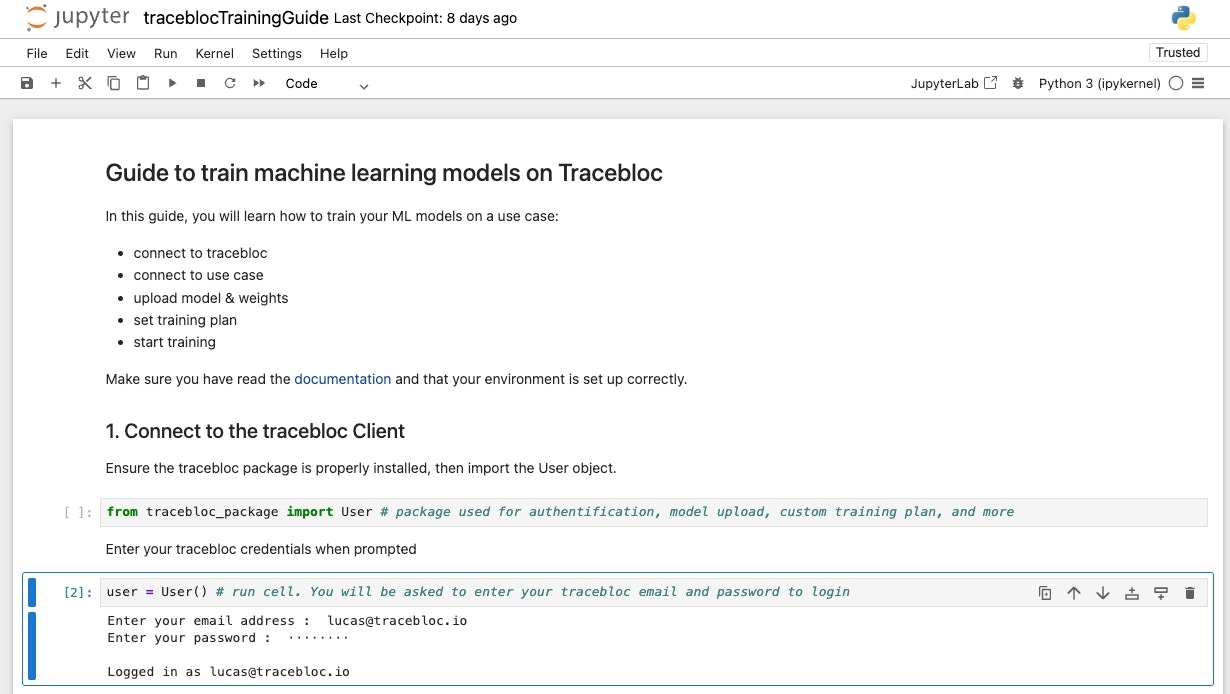
Getting Help
For more info about available functions and methods, call the help function:2. Upload Model & Customize
Choose a model from the tracebloc model zoo, it is the easiest way to get started. The model zoo provides starter templates you can modify freely. Make sure the mandatory variables in your model file match the use case parameters. You can find all the necessary info from the use case description and exploratory data analysis (EDA). Alternatively, you can define your own architecture from scratch.Model Parameters by Task
Every model file declaresframework, main_class (or main_method for a function-based model), batch_size and category. Add the task-specific variables below:
Text models also ship their tokenizer: put a
<model>_tokenizer.json (or tokenizer.json) next to the model file, where the SDK picks it up automatically, or pass its path with user.upload_model(..., tokenizer="path/to/tokenizer.json"). The text models in the model zoo come with their tokenizer file. The SDK matches <model>_tokenizer.json by the model file’s name, so when you copy or rename a model-zoo file (for example to try another batch_size), copy and rename its tokenizer too: distilgpt2.py and distilgpt2_tokenizer.json become distilgpt2_bs4.py and distilgpt2_bs4_tokenizer.json. A text model uploaded without a tokenizer fails validation.
Example
A 3-way classification task on 224x224 images with LeNet would need the following lenet.py configuration:Upload
Upload the model to the use case from your notebook:yolo_v1/, yolo_v5/, yolo_v8/) are folders holding model.py and the loss.py the model trains with. Upload the .zip that sits next to each folder, not the folder’s model.py:
distilgpt2, t5_small and vit_google. They build their architecture without the pretrained weights. The weights come in a separate <template>_weights.pkl file, which is not in the model zoo repository. Without it, the model trains from random weights. Fetch the file into the model file’s directory with user.fetch_seed_weights(), then upload with weights=True:
faster_rcnn_convnext_small, faster_rcnn_resnet_v2, faster_rcnn_swin_t, fcos_convnext_small, fcos_swin_t, retinanet_v2, ssd_vgg16 and ssdlite_mobilenet. Their seed carries the backbone only: the class head starts fresh, sized by output_classes.
fetch_seed_weights raises an error saying so. The SDK matches the weights file by the model file’s name, as it does the tokenizer, so if you rename the model file, rename the weights file too: distilgpt2_bs4.py needs distilgpt2_bs4_weights.pkl.
For details on model code formats, mandatory variables per framework, and pre-trained weights, see Customize Models.
3. Link Model with Dataset
Navigate to the use case and copy the “Training Dataset ID” at the center of the use case pane and enter it to establish the link4. Configure the experiment
Set the experiment name and configure hyperparameters.get_training_plan() to check the settings before you start the training. For a detailed list of all hyperparameter options, see Hyperparameters.
To train on part of the dataset, for example for a quick first run, set how many data items to use. For a dataset with class labels, give a number per class. For a dataset without class labels (for example causal language modeling or regression, where the link output shows allClasses: {'': 11983}), give one number:
5. Start Training
To send the model to the data owner’s secure environment and start training on the training data, run:If you want to run a second experiment, overwrite parameters and re-start training with
training_plan.start().Pause, Re-Start and Stop:
To pause, stop, or resume running experiments, click here: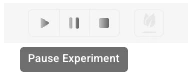
Submit an Experiment to the Leaderboard
Once training is complete, submit your best model to the leaderboard for evaluation on the test dataset. For the full submission flow and leaderboard details, see the Evaluate Model guide.Inviting Others to Your Team
See the Join guide for instructions.Next Steps
- customize models: Follow model optimisation.
Need Help?
For more info about available functions and methods, call the help function in your notebook:- Email us at [email protected]